Using an integration
This is the end-user path: enable the backing app, point a schema at the leaf, then link and create from the object's sidebar. What you can do depends on the leaf's tier.
1. Enable the backing Nextcloud app
Each Nextcloud-native leaf requires its backing app to be installed (see Leaf status for the requiredApp of each). For example, the Meetings leaf needs the calendar app; Cards needs deck.
- Admin → Apps → install and enable the backing app.
- The five built-in leaves (Files, Notes, Tags, Tasks, Audit trail) need nothing — they ride on Open Register itself.
If the backing app is missing, the leaf still appears in the admin list with a "needs <app> installed" hint, but no tab renders on objects (the three-stage gate).
2. Point the schema at the leaf
A leaf surfaces on an object only when the object's schema opts in via linkedTypes:
- Schemas → (your schema) → Linked types → add the leaf id (e.g.
calendar,deck,contacts). - This drives the schema-level filter — objects of that schema then get the leaf's tab and widget.
A schema property typed as reference with referenceType: '<leaf-id>' additionally renders the linked entity inline (the single-entity surface).
3. Open an object — the tab appears
On any object of an opted-in schema, the leaf shows as a sidebar tab named after the leaf (Meetings, Cards, Contacts, …). The same registration also drives a dashboard widget in the app-dashboard and user-dashboard surfaces.
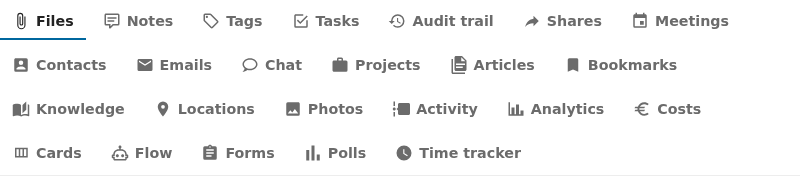
What you can do, by tier
Tier 0–1 — read
The tab lists the upstream things linked to this object. Empty objects show "Nothing linked yet". The list never crashes when the upstream app is empty or unconfigured — it shows an empty state (Tier 1).
Tier 2 — link and create
Tier-2 leaves add two actions to the tab:
- Link — opens a picker dialog to choose an existing upstream thing (a calendar event, a Deck card, a contact) and bind it to this object. The binding lands in the leaf's link table.
- Create — opens a dialog to create a new upstream thing and link it in one step (e.g. create a Deck card directly from the object). Available where the leaf's storage strategy supports writes; see the Create column in Leaf status.
Some leaves are link-only (no create) — for example Email, Forms, Photos, and Analytics, where Open Register links to things created in the upstream app but does not author them.
Read-only / query-time leaves
Audit trail, Activity, and Shares compute their list fresh on every view (no link table). They have no Link or Create action by design — there is nothing local to write to.
Next
- External integrations — xWiki and OpenProject need a connection configured first.
- AI-agent / MCP setup — let an AI agent do all of the above over MCP.
- Leaf status — which leaves have picker / create.